Maps
Overview
Maps are created from your GeoServer layers
Create Map
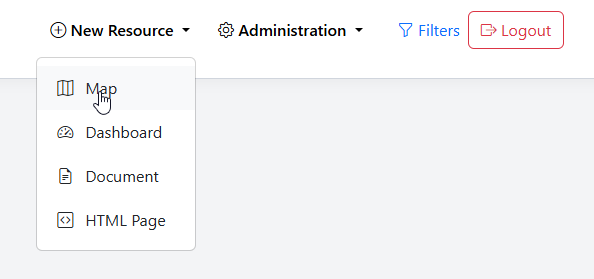
To add a new Map, go to Add Resource > Map
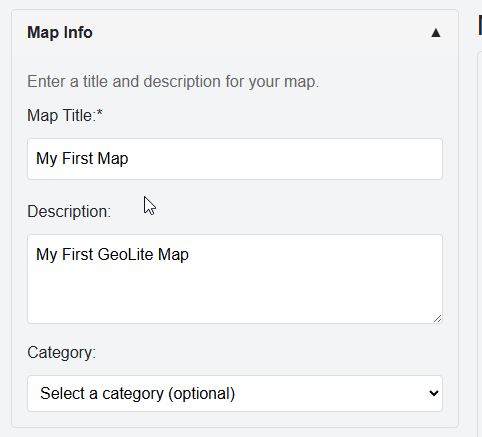
Give your Map a name and description.
Optionally, select a Category
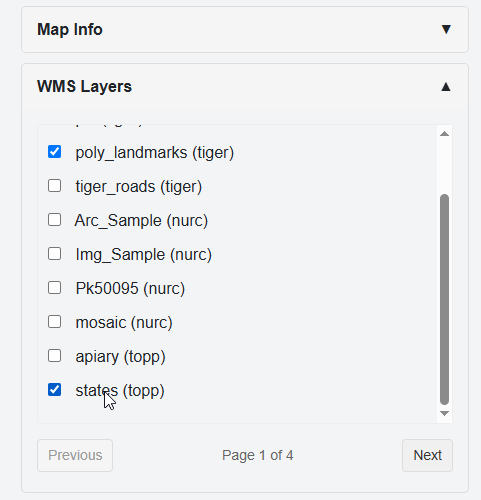
Select the GeoSever layers to include:
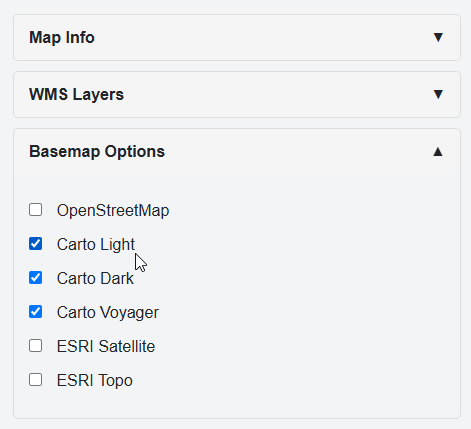
Select Basemap(s) to include
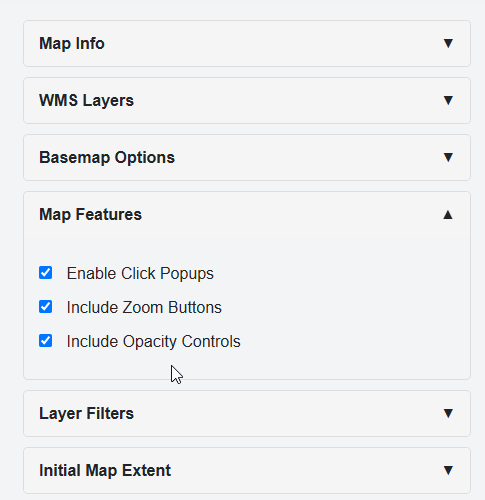
Select Map Features to include
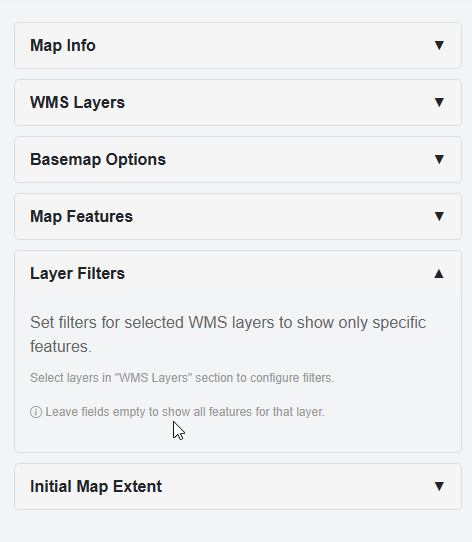
Filters can be added only once the Map is saved
Click Generate Map
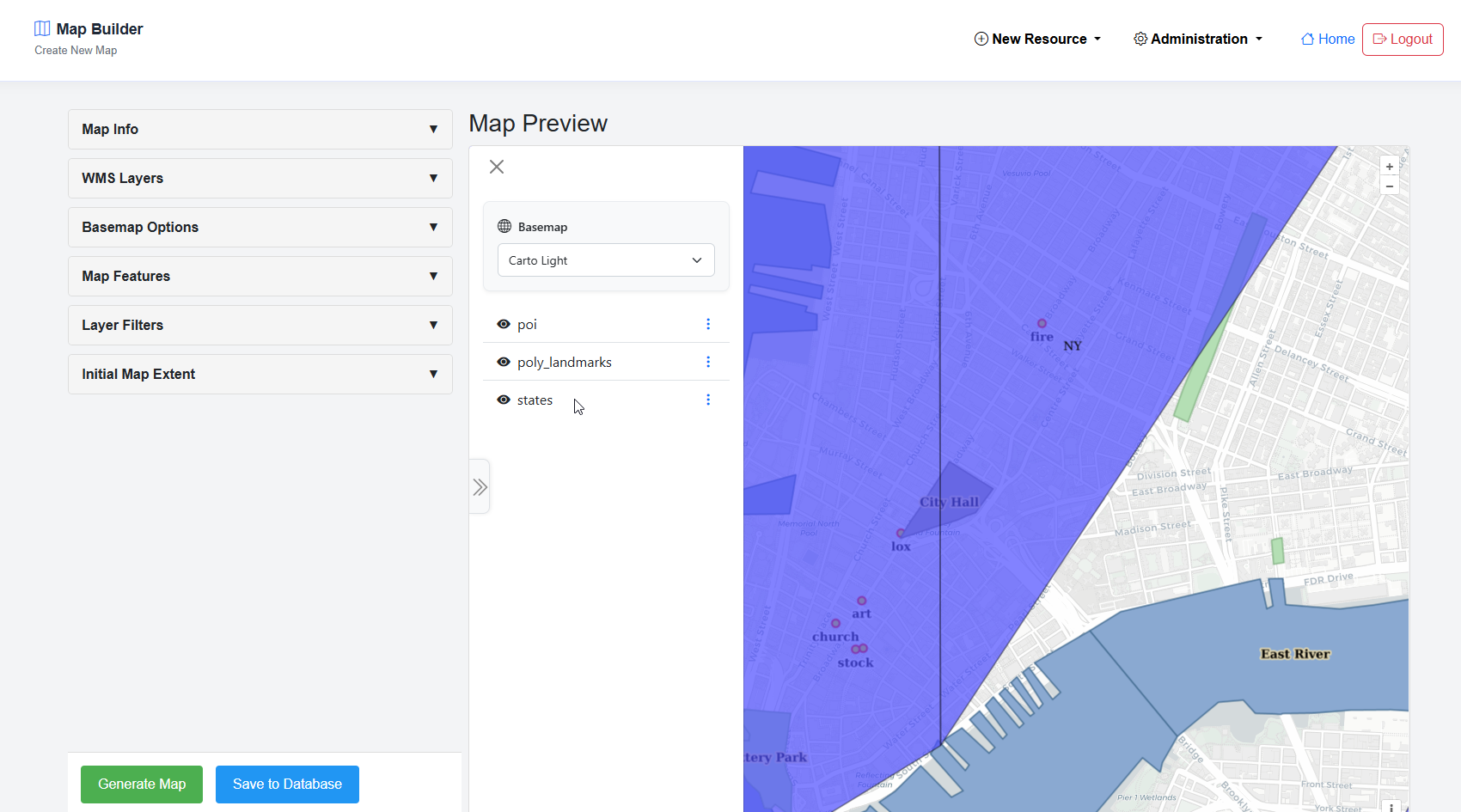
The generated map is displayed in the preview pane
Adjust the desired initial extent
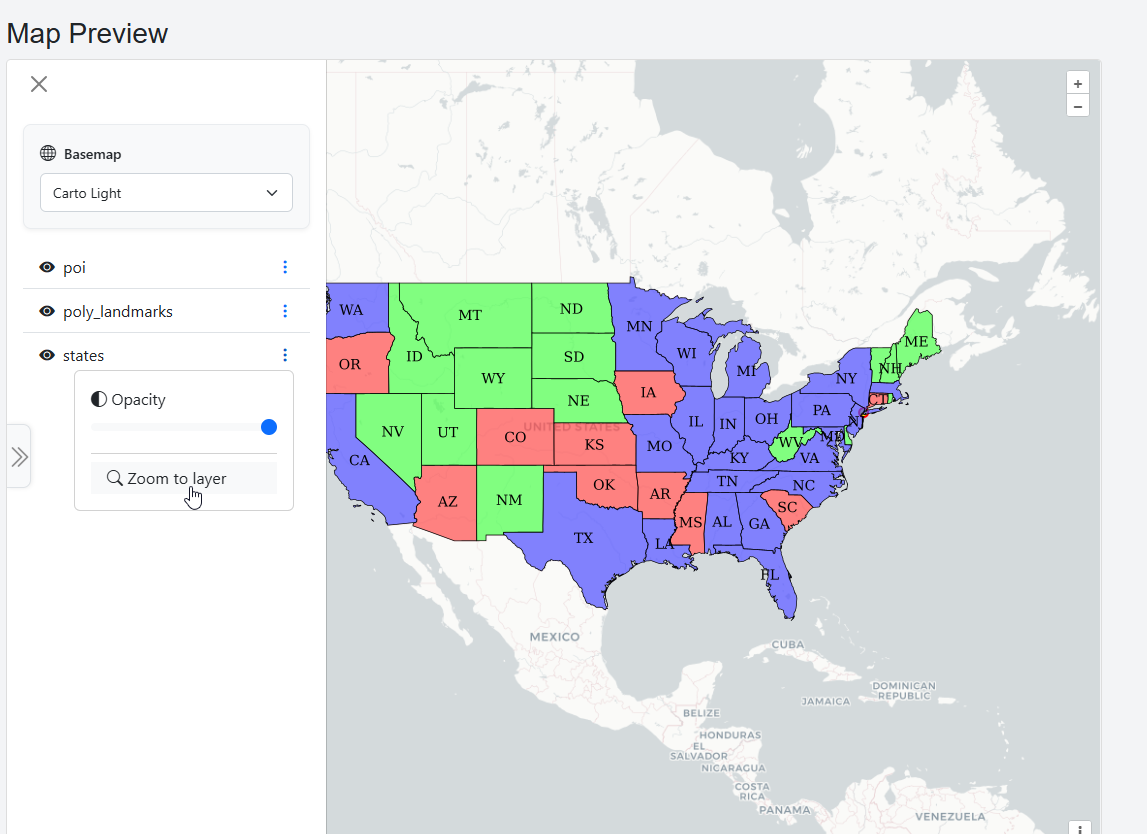
Under Initial Extent, click the Capture Current Position
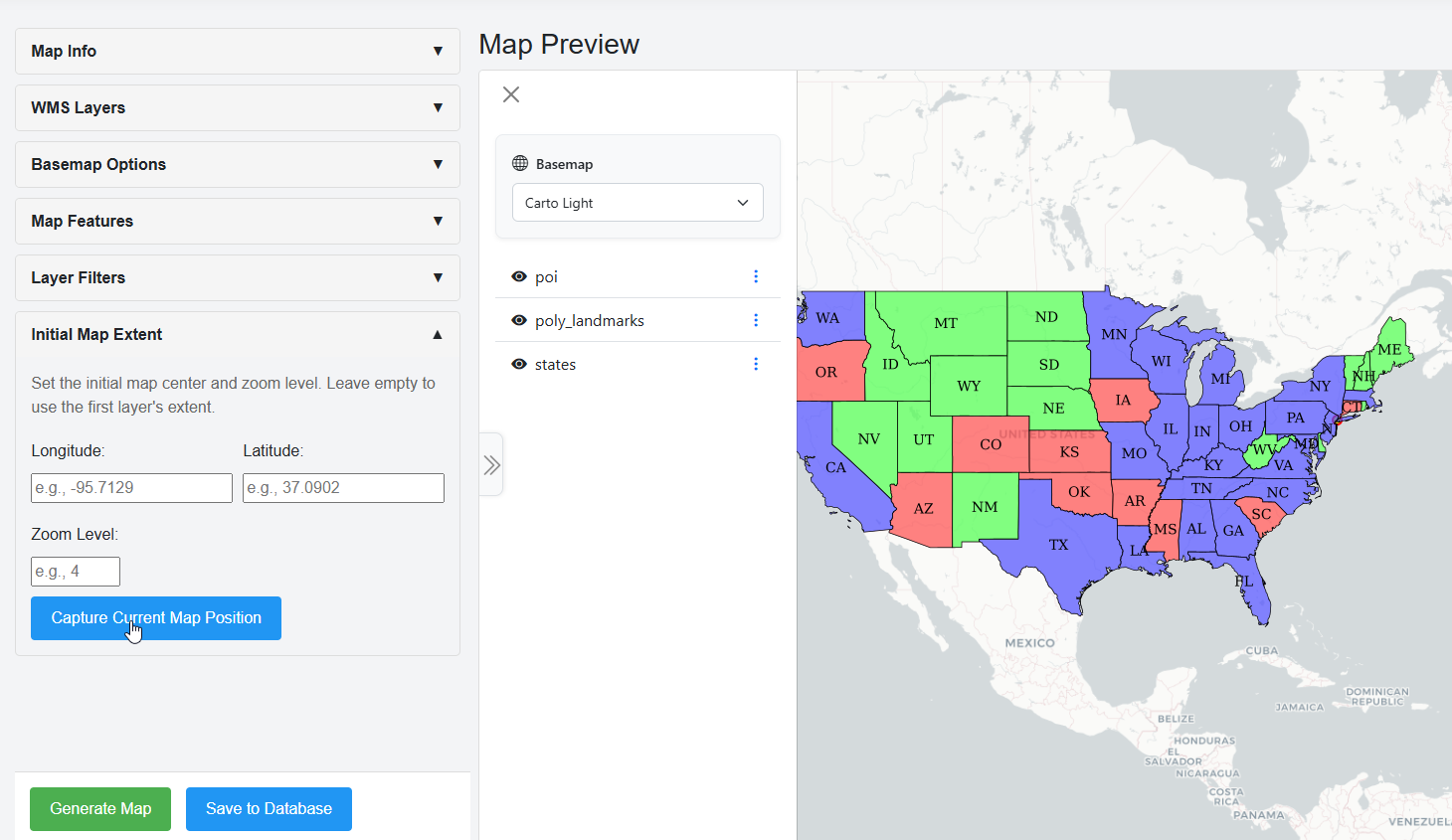
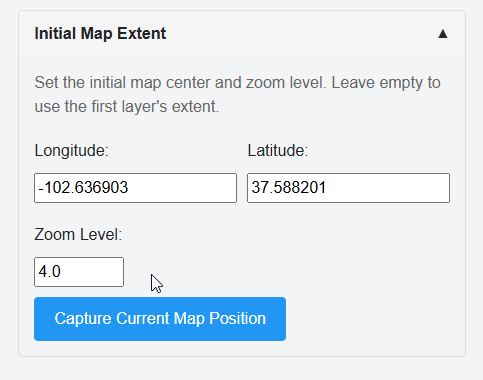
The current Map position is populated
Click Generate Map
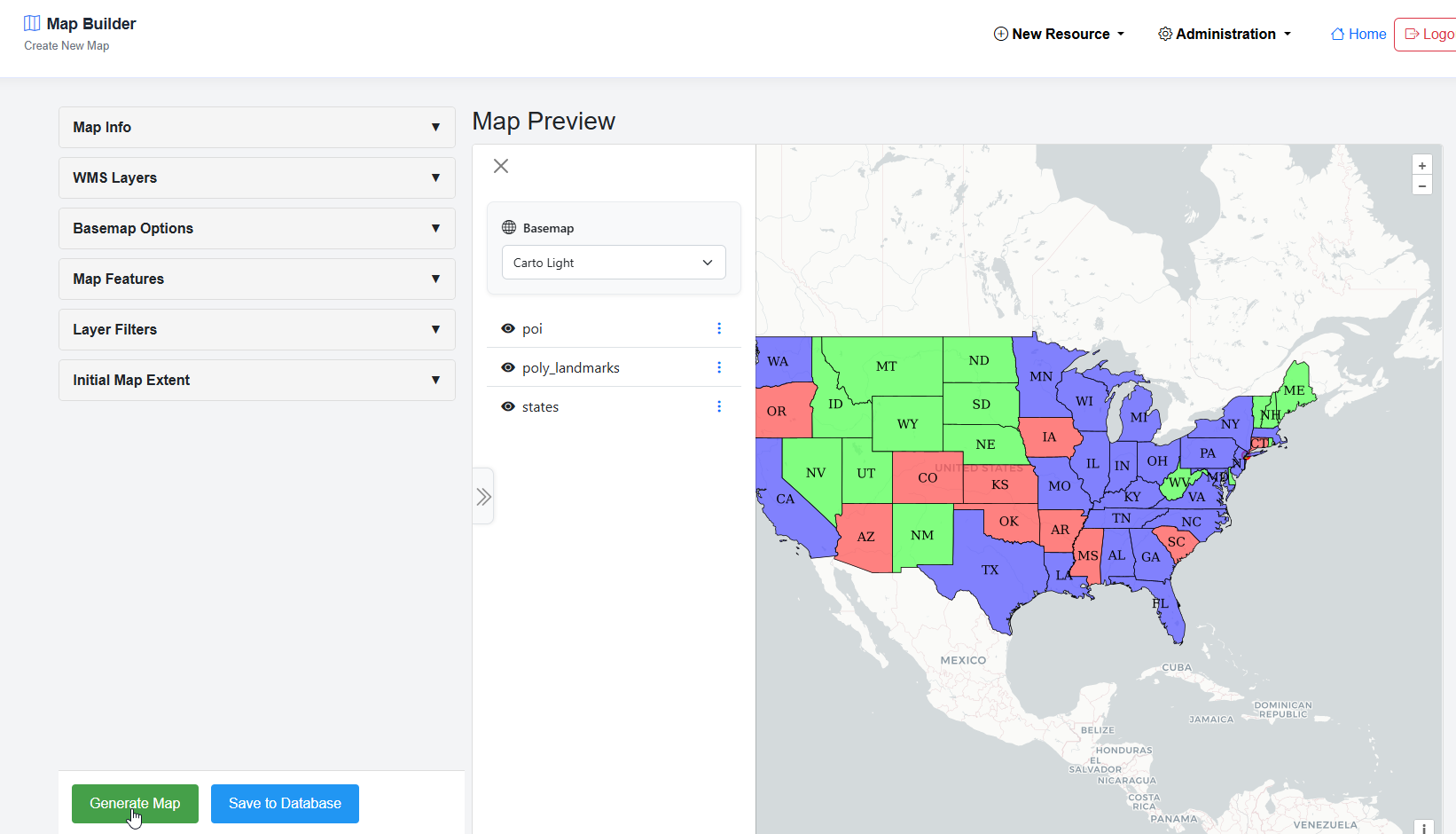
When you have completed your Map, click the Save to Database button
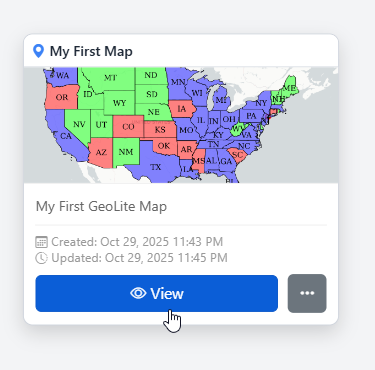
Your Map has now been created:
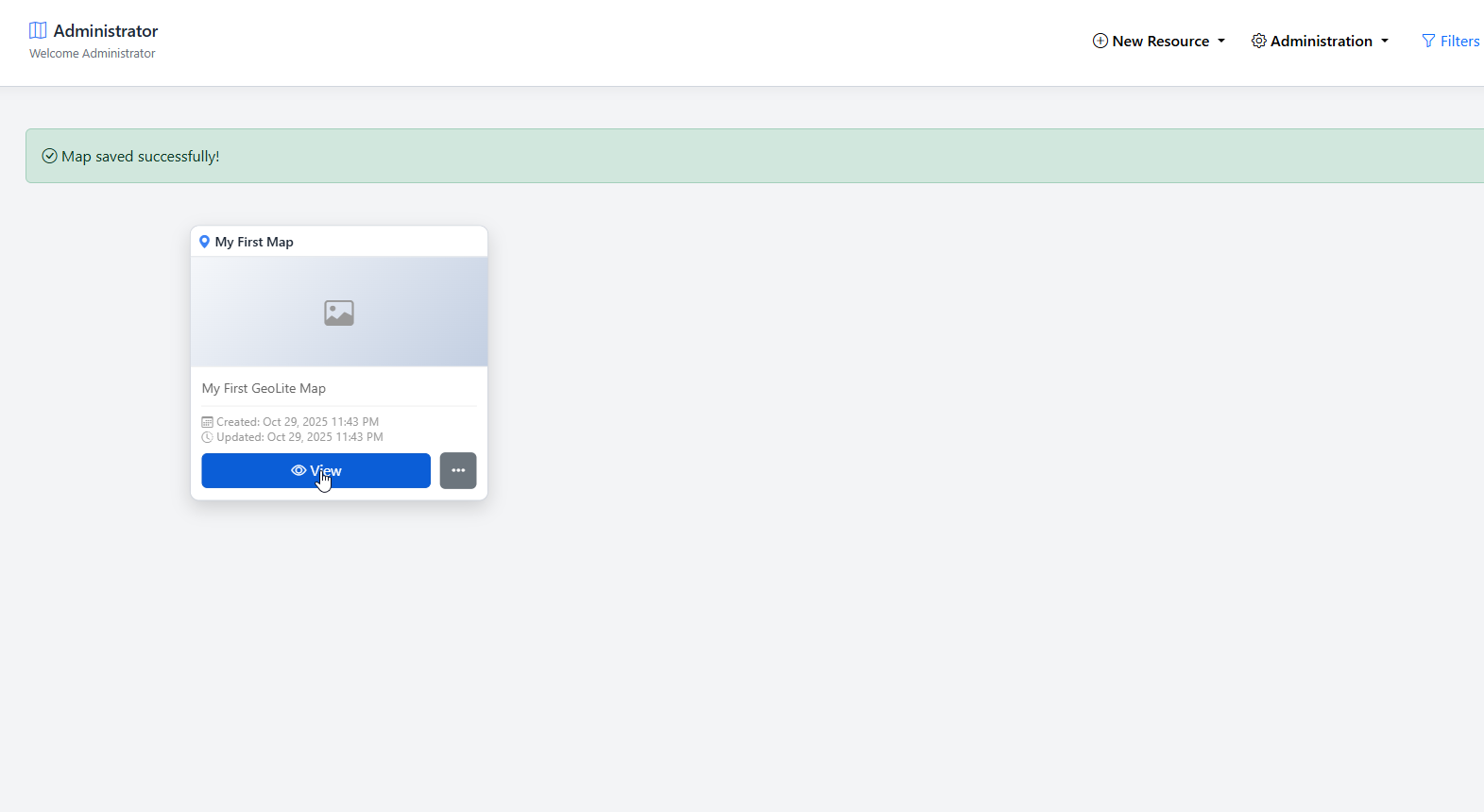
Map Thumbnail
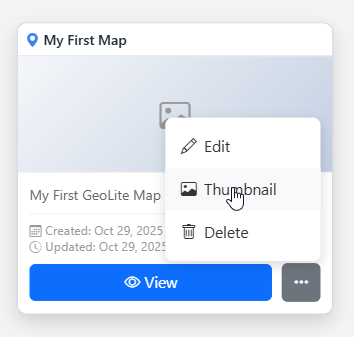
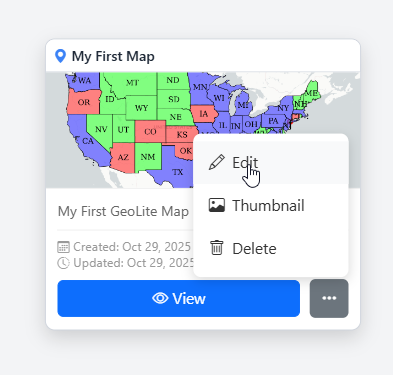
To set a thumbnail for the map, select Thumbnail on the menu
Chose your thumnail and click Upload
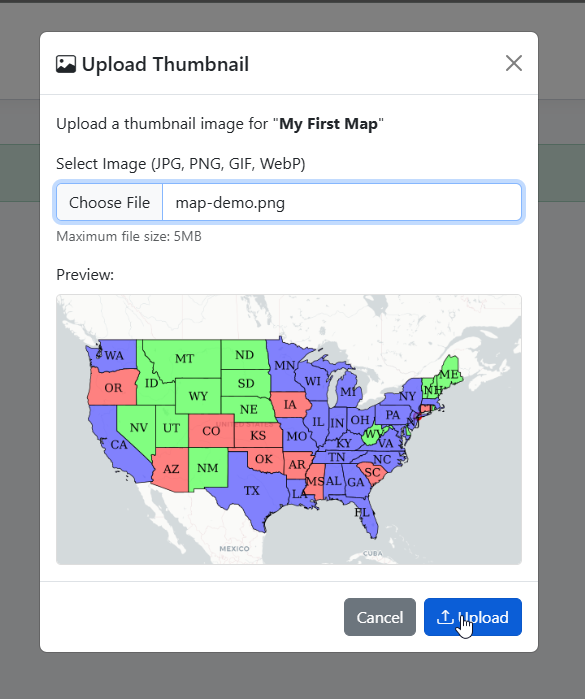
The Map thumbnail has now been set
Edit Map
To edit a Map, click the edit link
Make any changes or updates, making sure to click Update Map as you go
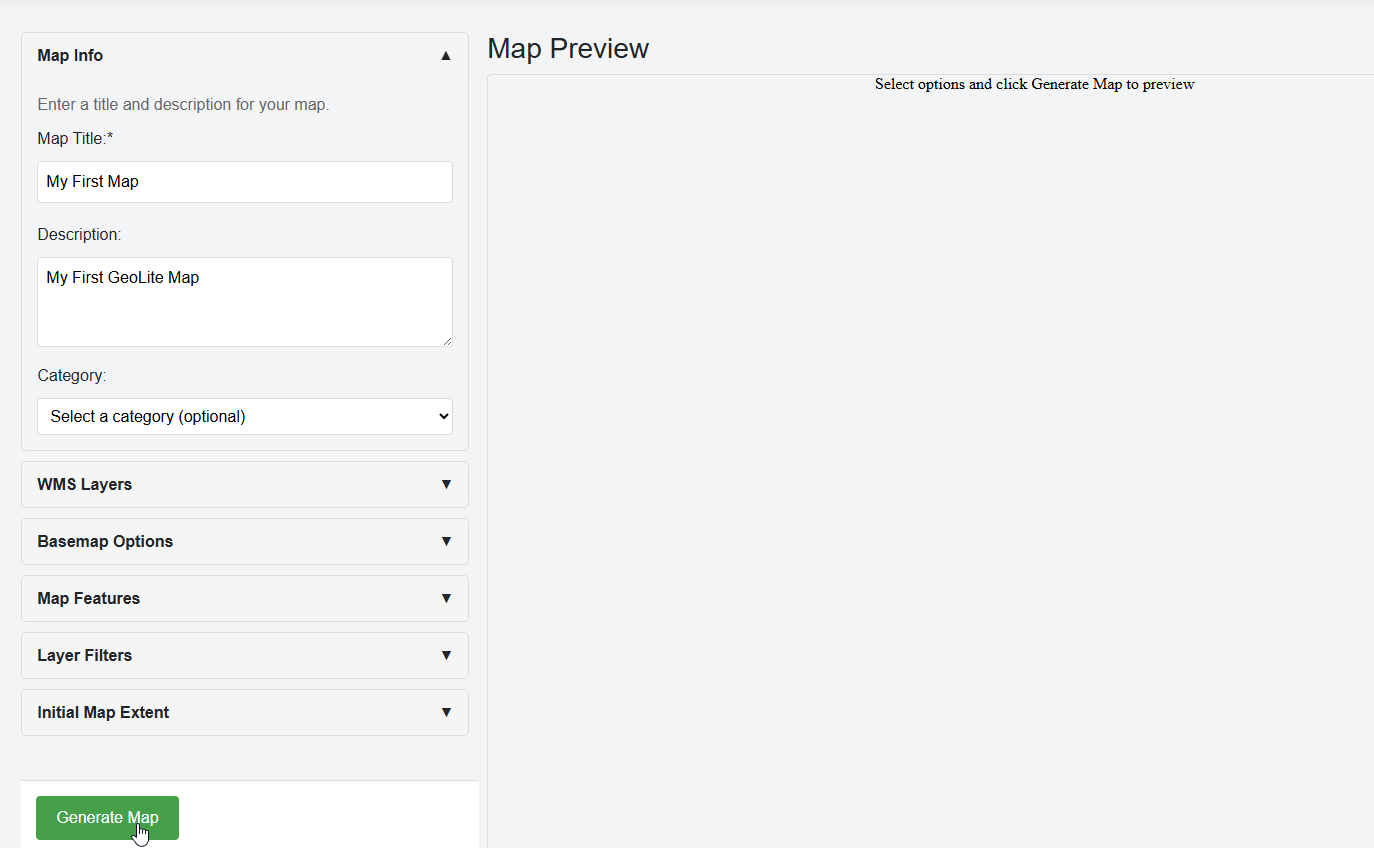
Once completed, click the Update Map button
Map Filters
To add a Map filter, expand the Layer Filter section
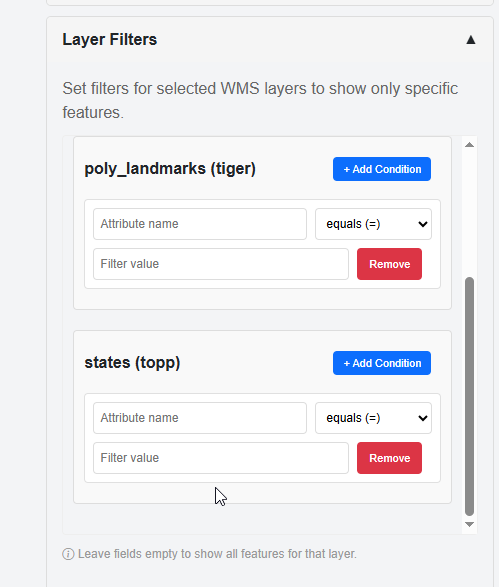
Add any Filters you wish to add
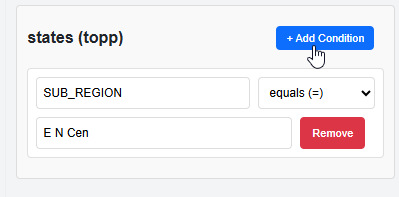
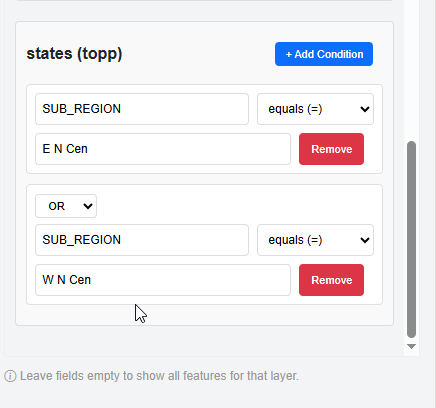
For multiple Filters on same layer, click “Add Condition”
be sure to select “And” or “Or” as needed
Click Generate Map
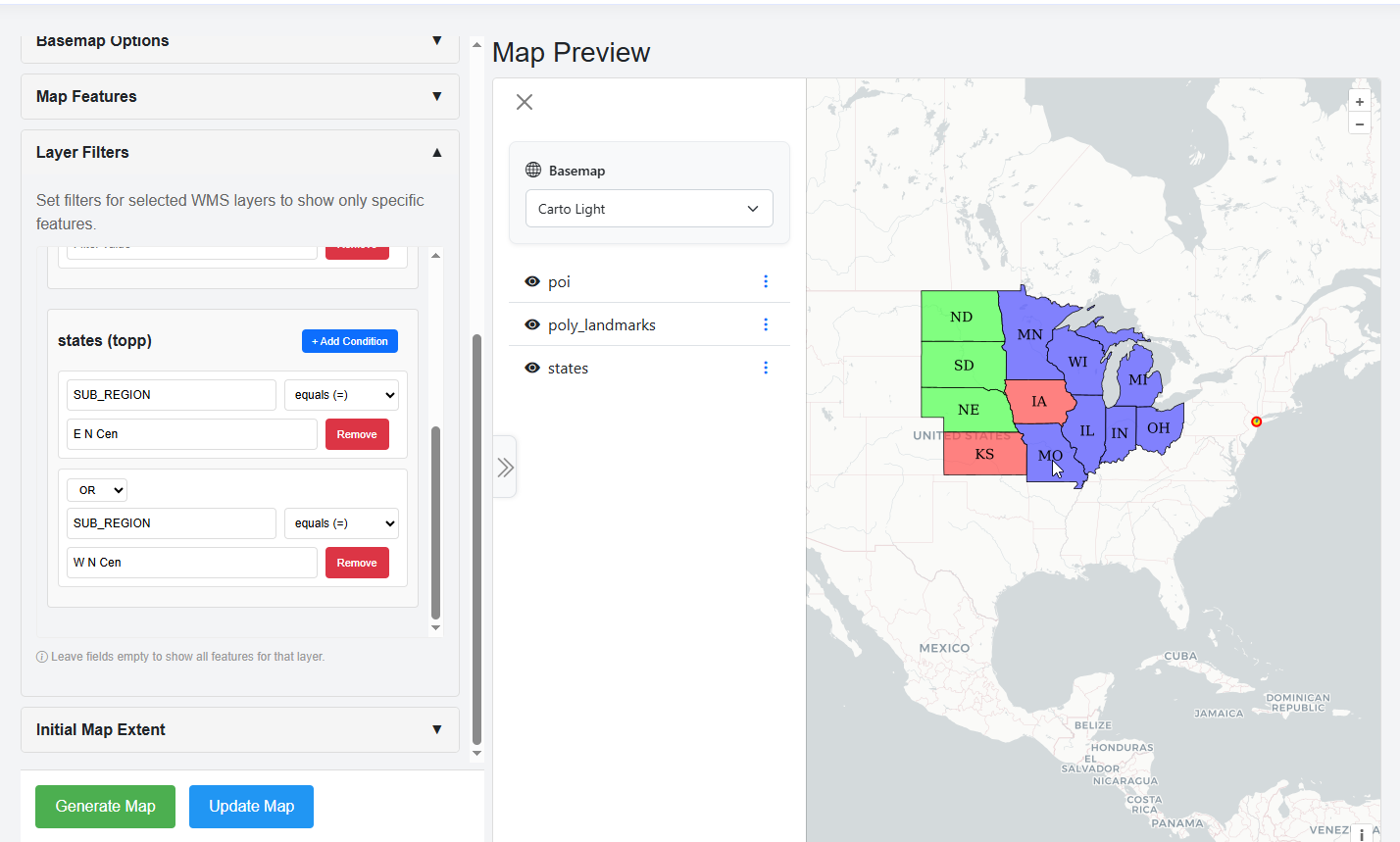
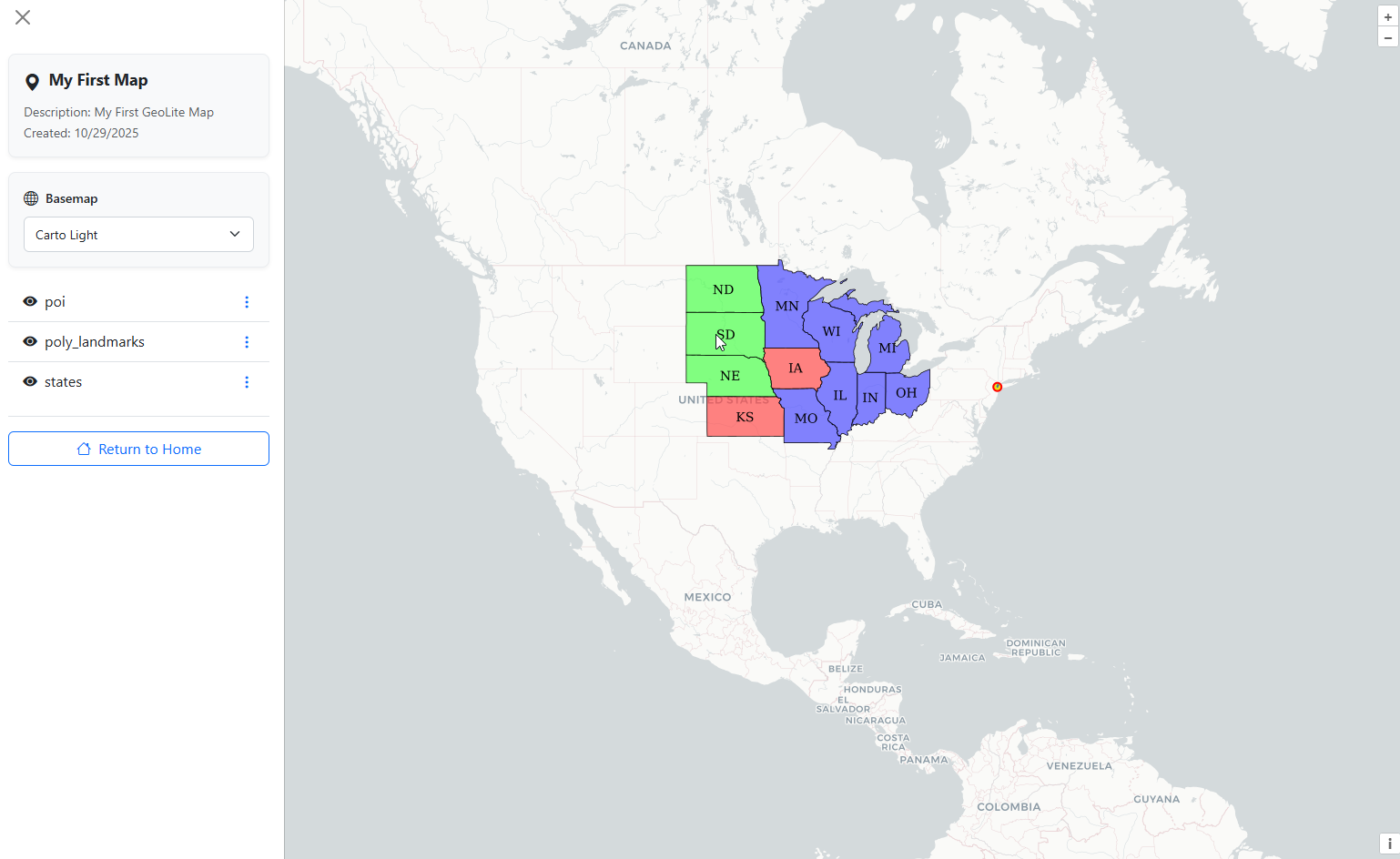
Your Map is now Filtered
Delete Map
To delete a Map, click the delete icon